Website Builder > Page Types
Page Types
Learn how to add custom page types to the Website Builder's Create Page dialog.
- what page types are and how they work
- how to register a custom page type with its own creation form
- how to remove the built-in page type
Overview
When a user clicks Create Page in the Website Builder, a dialog appears with a Page Type dropdown and a form below it. Selecting a type changes the form, letting each type collect the properties it needs before the page is created.
By default, only the Static Page type is registered. It collects a title and a URL path. Page types are registered via PageListConfig.PageType — you define a name, a dropdown label, and a React element that renders the creation form.
The form fields bind directly to the page properties that will be persisted when the dialog is confirmed. Fields under properties.* end up on the page’s properties object. The page type name itself is stored on metadata.pageType, making it available for conditional rendering, routing, or API filtering later.
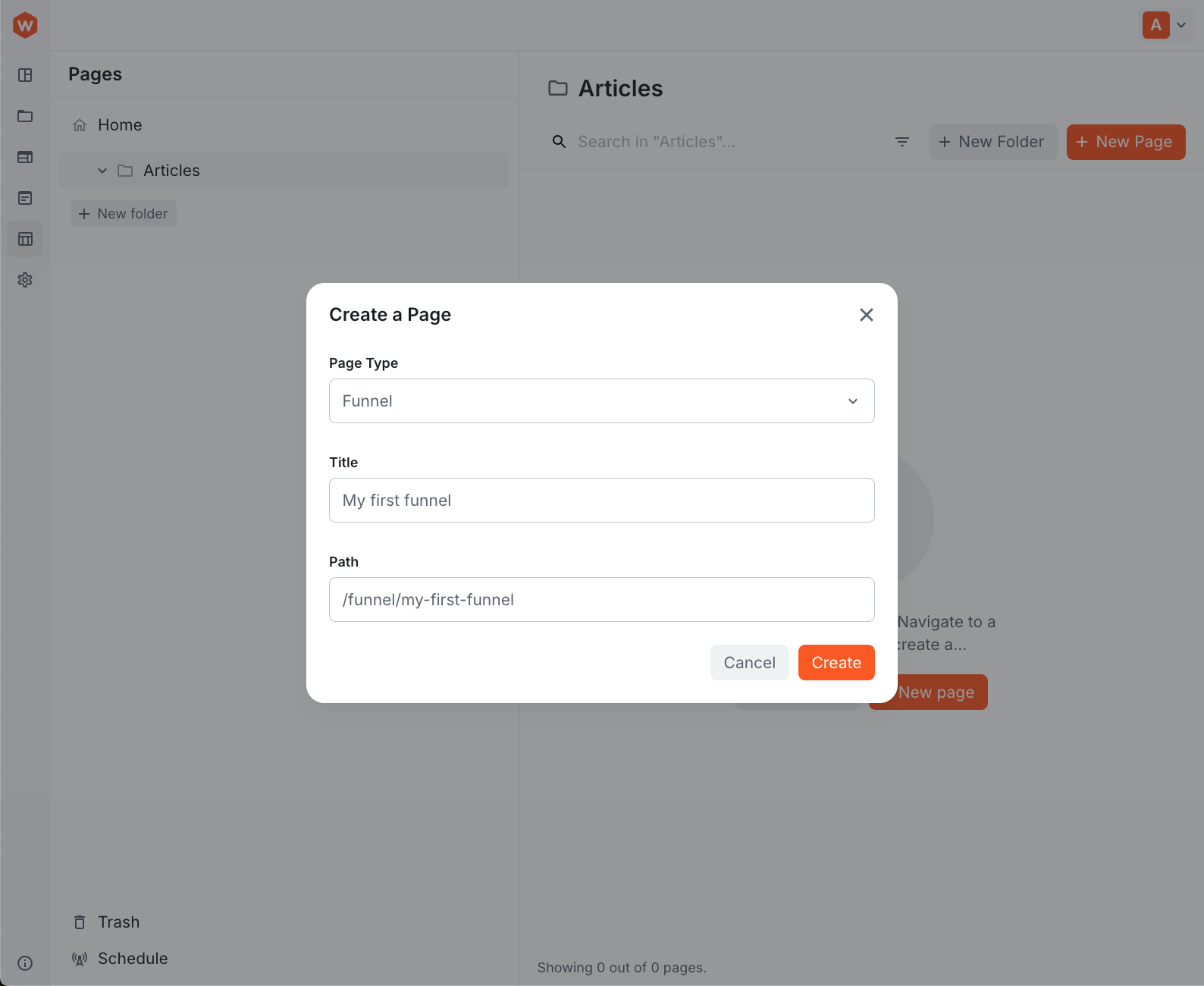 Create a Page dialog with a custom Funnel page type
Add a Page Type
A custom page type consists of two parts: a form component and a PageListConfig.PageType registration.
The Form Component
The form component renders inside the Create Page dialog below the type selector. Use Bind and useForm from webiny/admin/form to connect fields to the page data, and UnsetOnUnmount to clean up field values when the user switches to a different page type:
Bind name={"properties.title"}— binds the input toproperties.titleon the new pageUnsetOnUnmount— clears the field value when the user switches to a different page type in the dropdown, preventing stale data from being submitteduseForm()— gives access togetValueandsetValuefor reading and updating other fields, useful for auto-generating the path from the titlepagePathFromTitle— utility that converts a human-readable title to a URL-safe path segment (e.g."My Funnel Page"→"my-funnel-page")
Registering the Page Type
Create an extension that uses PageListConfig.PageType to register the new type:
PageType Properties
| Prop | Type | Description |
|---|---|---|
name | string | Unique identifier stored on metadata.pageType when created |
label | string | Label shown in the Page Type dropdown |
element | React.ReactNode | Form rendered in the dialog when this type is selected |
remove | boolean | When true, removes an existing type by name; other props are not required |
Remove a Page Type
To remove the built-in Static Page type — for example, when replacing it entirely with your own type — pass remove:
With the static type removed, the dropdown is skipped automatically when there is only one type registered — the dialog goes straight to the form.
Registering the Extension
Register the extension file as an Admin.Extension in webiny.config.tsx: